
🛡️Safety and the principle of caution!
Giving a temporary login link or login credentials (username and password with administrator privileges for all parts of your site) exposes you to the risk of installing unofficial (GPL/Pre-Activated/Nulled/Cracked) copies containing malicious code, or the vendor gaining access to your customers' data and losing control of your security settings.
Follow these steps to ensure you receive the original version:
Request the file: Ask the seller for the add-on file in ZIP format.
What if the seller refuses to give me the file? This raises doubts about the seller's credibility and suggests that the add-on or template is unofficial.
Manual installation of plugins: Go to (Plugins → Add New → Upload Plugin) and select the file.
Manual installation of templates: Go to (Appearance → Add New → Upload Template) and select the file.
Very important: After installing the plugin or theme, look for the license page.
- If you cannot find a license page, then this plugin or template is unofficial.
- If you find the plugin page and it has a pre-activated code, then this plugin or template is unofficial.
- You must find the license page, and it should be empty and without activation.
We will create a dedicated account called the "Activation" account:
Go to Users → Add New.
• Username: Activation | Email: act@activation.com
• Password: Choose a very strong password that includes symbols and numbers.
• Rank: Select Administrator.
• Important: Uncheck "Send notification to user".
This is the most important step using the Advanced Access Manager (AAM) plugin:
https://wordpress.org/plugins/advanced-access-manager/
Go to the AAM add-on → Users tab.
2. Select the Activation user and click the gear icon ⚙️.
3. Select Backend Menu from the left-hand menu.
4. Click Restrict Menu for all sensitive menus (a red line 🛑 will appear).
5. Leave only the add-on you want to activate without any restrictions.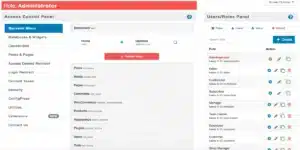
6. Send the seller's login details
What if the seller rejects the restricted login data and requests a temporary login link or full site login data with administrator privileges? This raises doubts about the seller's credibility and suggests that the add-on or template is unofficial.
Don't leave the account open! Do the following:
.
Change password: Immediately from the user's profile.
• Restrict access: Return to AAM and restrict access even for the activated add-on.
• Verification: Ensure that if the seller logs in again, they will find a completely empty control panel.
There's no need to repeat all the steps, just do the following:
1. Install the new add-on yourself.
2. Unlock the new add-on in AAM for the Activation user only.
3. Give the vendor the new password, and repeat the security steps after completion.

